> ## Documentation Index
> Fetch the complete documentation index at: https://auth0-docs-event-stream-action-templates.mintlify.site/llms.txt
> Use this file to discover all available pages before exploring further.
> Lock has many configurable options that allow you to change the behavior, appearance, and connectivity of the Lock widget - this resource provides the details on those options for you!
# Lock Configuration Options
export const AuthCodeBlock = ({filename, icon, language, highlight, children}) => {
const [displayText, setDisplayText] = useState(children);
const [copyText, setCopyText] = useState(children);
const wrapperRef = React.useRef(null);
useEffect(() => {
let unsubscribe = null;
function init() {
if (!window.autorun || !window.rootStore) {
return;
}
unsubscribe = window.autorun(() => {
let processedChildrenForDisplay = children;
let processedChildrenForCopy = children;
for (const [key, value] of window.rootStore.variableStore.values.entries()) {
const escapedKey = key.replaceAll(/[.*+?^${}()|[\]\\]/g, (String.raw)`\$&`);
let displayValue = value;
if (key === "{yourClientSecret}" && value !== "{yourClientSecret}") {
displayValue = value.substring(0, 3) + "*****MASKED*****";
}
processedChildrenForDisplay = processedChildrenForDisplay.replaceAll(new RegExp(escapedKey, "g"), displayValue);
processedChildrenForCopy = processedChildrenForCopy.replaceAll(new RegExp(escapedKey, "g"), value);
}
setDisplayText(processedChildrenForDisplay);
setCopyText(processedChildrenForCopy);
});
}
if (window.rootStore) {
init();
} else {
window.addEventListener("adu:storeReady", init);
}
return () => {
window.removeEventListener("adu:storeReady", init);
unsubscribe?.();
};
}, [children]);
useEffect(() => {
if (!wrapperRef.current) return;
const originalWriteText = navigator.clipboard.writeText.bind(navigator.clipboard);
let isOverriding = false;
const handleClick = e => {
const button = e.target.closest('[data-testid="copy-code-button"]');
if (!button || !wrapperRef.current.contains(button)) return;
isOverriding = true;
navigator.clipboard.writeText = text => {
if (isOverriding) {
isOverriding = false;
navigator.clipboard.writeText = originalWriteText;
return originalWriteText(copyText);
}
return originalWriteText(text);
};
setTimeout(() => {
if (isOverriding) {
isOverriding = false;
navigator.clipboard.writeText = originalWriteText;
}
}, 100);
};
const wrapper = wrapperRef.current;
wrapper.addEventListener('click', handleClick, true);
return () => {
wrapper.removeEventListener('click', handleClick, true);
if (navigator.clipboard.writeText !== originalWriteText) {
navigator.clipboard.writeText = originalWriteText;
}
};
}, [copyText]);
return
{displayText}
;
};
Lock can be configured through the `options` parameter sent to the constructor. These options can alter the way that the Lock widget behaves, how it deals with connections, additional signup fields that you require for your project, the language and text values, colors, and images on the widget, and many more. Take a look at the index below if you know what you are looking for, or browse the options for more details.
## UI
| Option | Description |
| ---------------------------------------------------------------------- | ---------------------------------------------------------------------------------------------------------------------------------------------- |
| [allowAutocomplete](#allowautocomplete-boolean-) | Enable or disable autocompletion on the email or username inputs |
| [allowPasswordAutocomplete](#allowpasswordautocomplete-boolean-) | Enable or disable autocompletion on password input |
| [allowShowPassword](#allowshowpassword-boolean-) | Specifies if the user can choose to show password while typing it |
| [allowedConnections](#allowedconnections-array-) | List of connections that will be available to perform authentication |
| [autoclose](#autoclose-boolean-) | Specifies if Lock closes after a login |
| [autofocus](#autofocus-boolean-) | Specifies if focus is set on the first input field |
| [avatar](#avatar-object-) | Specifies if an avatar and a username should be displayed on the Lock's header once an email or username has been entered and how to obtain it |
| [closable](#closable-boolean-) | Determines whether or not Lock can be closed |
| [container](#container-string-) | The HTML element where Lock will be rendered. This causes Lock to appear inline instead of in a modal window |
| [flashMessage](#flashmessage-object-) | Shows an `error` or `success` flash message when Lock is shown |
| [language](#language-string-) | Specifies the language of the widget |
| [languageDictionary](#languagedictionary-object-) | Customize text used for widget elements (such as labels and placeholders) |
| [popupOptions](#popupoptions-object-) | Customize the location of the popup in the screen |
| [rememberLastLogin](#rememberlastlogin-boolean-) | Whether or not to show a screen that allows you to quickly log in with the account you used the last time |
| [scrollGlobalMessagesIntoView](#scrollglobalmessagesintoview-boolean-) | Specify if a globalMessage should be scrolled into the user's viewport |
## Theme
Theme options are grouped in the `theme` property of the `options` object.
| Option | Description |
| ---------------------------------------------------- | ------------------------------------------------------- |
| [authButtons](#authbuttons-object-) | Customize the appearance of specific connection buttons |
| [labeledSubmitButton](#labeledsubmitbutton-boolean-) | whether or not the submit button has text |
| [logo](#logo-string-) | What logo should be used |
| [primaryColor](#primarycolor-string-) | Color of the primary button on the widget |
## Authentication
Authentication options are grouped in the `auth` property of the `options` object.
| Option | Description |
| --------------------------------------------- | -------------------------------------------------------------------------------------------------------------------------------------------------------------------------------------------------------------------------------------------------------- |
| [audience](#audience-string-) | The API which will be consuming your Access Token |
| [autoParseHash](#autoparsehash-boolean-) | Whether or not to automatically parse hash and continue |
| [connectionScopes](#connectionscopes-object-) | Specify connection scopes |
| [params](#params-object-) | Option to send parameters at login |
| [redirect](#redirect-boolean-) | Whether or not to use redirect mode |
| [redirectUrl](#redirecturl-string-) | The URL to redirect to after auth |
| [responseMode](#responsemode-string-) | Option to send response as POST |
| [responseType](#responsetype-string-) | Response as a code or token |
| [sso](#sso-boolean-) | Determines whether Single Sign-On is enabled or not in Lock |
## Database
| Option | Description |
| --------------------------------------------------------------- | ---------------------------------------------------------------------------- |
| [additionalSignUpFields](#additionalsignupfields-array-) | Additional fields collected at signup |
| [allowLogin](#allowlogin-boolean-) | Whether or not to allow login on widget |
| [allowForgotPassword](#allowforgotpassword-boolean-) | Whether or not to allow forgot password on widget |
| [allowSignUp](#allowsignup-boolean-) | Whether or not to allow signup on widget |
| [defaultDatabaseConnection](#defaultdatabaseconnection-string-) | Default shown DB connection |
| [initialScreen](#initialscreen-string-) | Which screen to show when the widget is opened |
| [loginAfterSignUp](#loginaftersignup-boolean-) | After signup, whether or not to auto login |
| [forgotPasswordLink](#forgotpasswordlink-string-) | Link to a custom forgot password page |
| [showTerms](#showterms-boolean-) | Specify if signup terms should be display |
| [mustAcceptTerms](#mustacceptterms-boolean-) | Whether or not terms must be accepted (checkbox) |
| [prefill](#prefill-object-) | Prefill values for email/username fields |
| [signUpLink](#signuplink-string-) | Set a custom url to fire when clicking "sign up" |
| [usernameStyle](#usernamestyle-string-) | Limit username field to accept only "username" values or only "email" values |
## Enterprise
| Option | Description |
| ------------------------------------------------------------------- | ----------------------------------------------- |
| [defaultEnterpriseConnection](#defaultenterpriseconnection-string-) | Specifies a connection if more than one present |
## Passwordless
| Option | Description |
| ------------------------------------------------- | ---------------------------------------------------------------------------------------------------------------------------------------------------------------------------------------------------------------------------------- |
| [passwordlessMethod](#passwordlessmethod-string-) | When using `Auth0LockPasswordless` with an email connection, you can use this option to pick between sending a [code](/docs/authenticate/passwordless) or a [magic link](/docs/authenticate/passwordless) to authenticate the user |
### Other
| Option | Description |
| ----------------------------------------------------- | -------------------------------------------------------------------------------------- |
| [configurationBaseUrl](#configurationbaseurl-string-) | Override your application's base URL |
| [languageBaseUrl](#languagebaseurl-string-) | Override your language file base URL |
| [hashCleanup](#hashcleanup-boolean-) | Override the default removal of the hash from the URL |
| [connectionResolver](#connectionresolver-function-) | Optional callback function for choosing a connection based on the username information |
***
## UI Options
### allowAutocomplete \{Boolean}
Determines whether or not the email or username fields will allow autocomplete (``). Defaults to `false`.
`allowAutocomplete: true`
### allowPasswordAutocomplete \{Boolean}
Determines whether or not the password field will allow autocomplete (``). Defaults to `false`.
Set `allowPasswordAutocomplete` to `true` for password manager support and to avoid other cases of adverse behavior.
`allowPasswordAutocomplete: true`
### allowShowPassword \{Boolean}
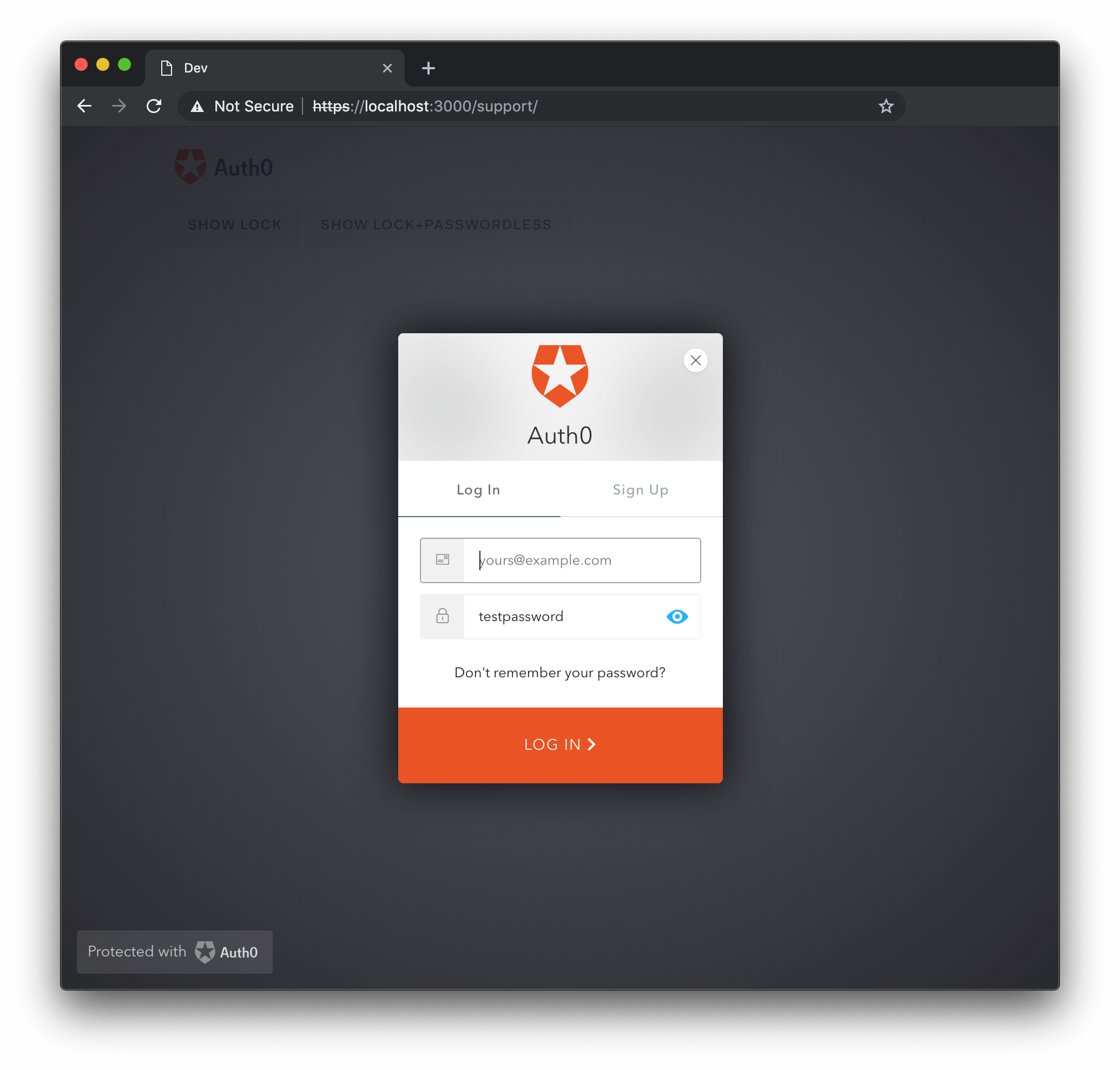
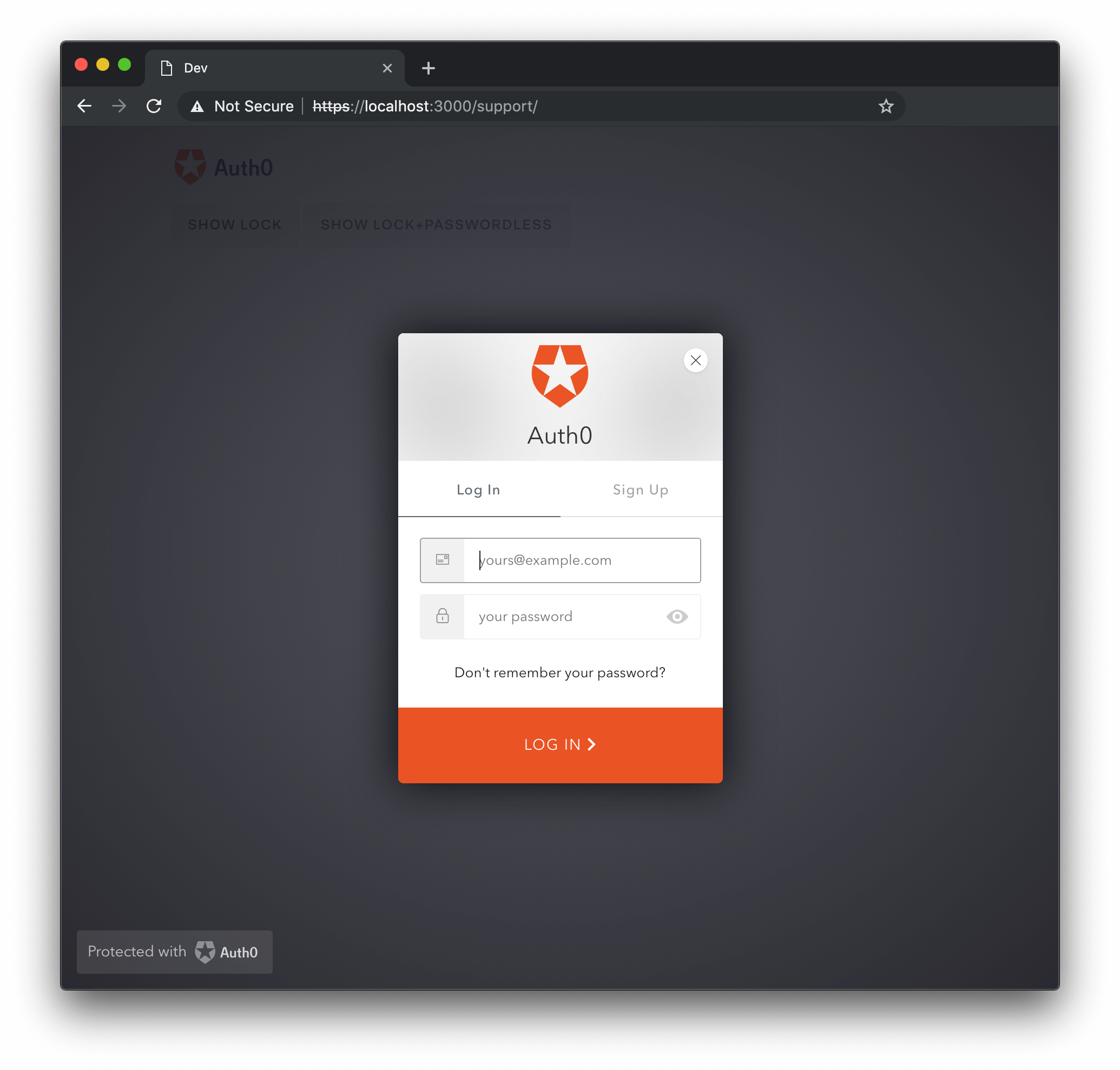
This option determines whether or not to add a checkbox to the UI which, when selected, will allow the user to show their password when typing it. The option defaults to `false`.
`allowShowPassword: true`
Lock with `allowShowPassword` set to `true` and toggled to show the password:
### allowedConnections \{Array}
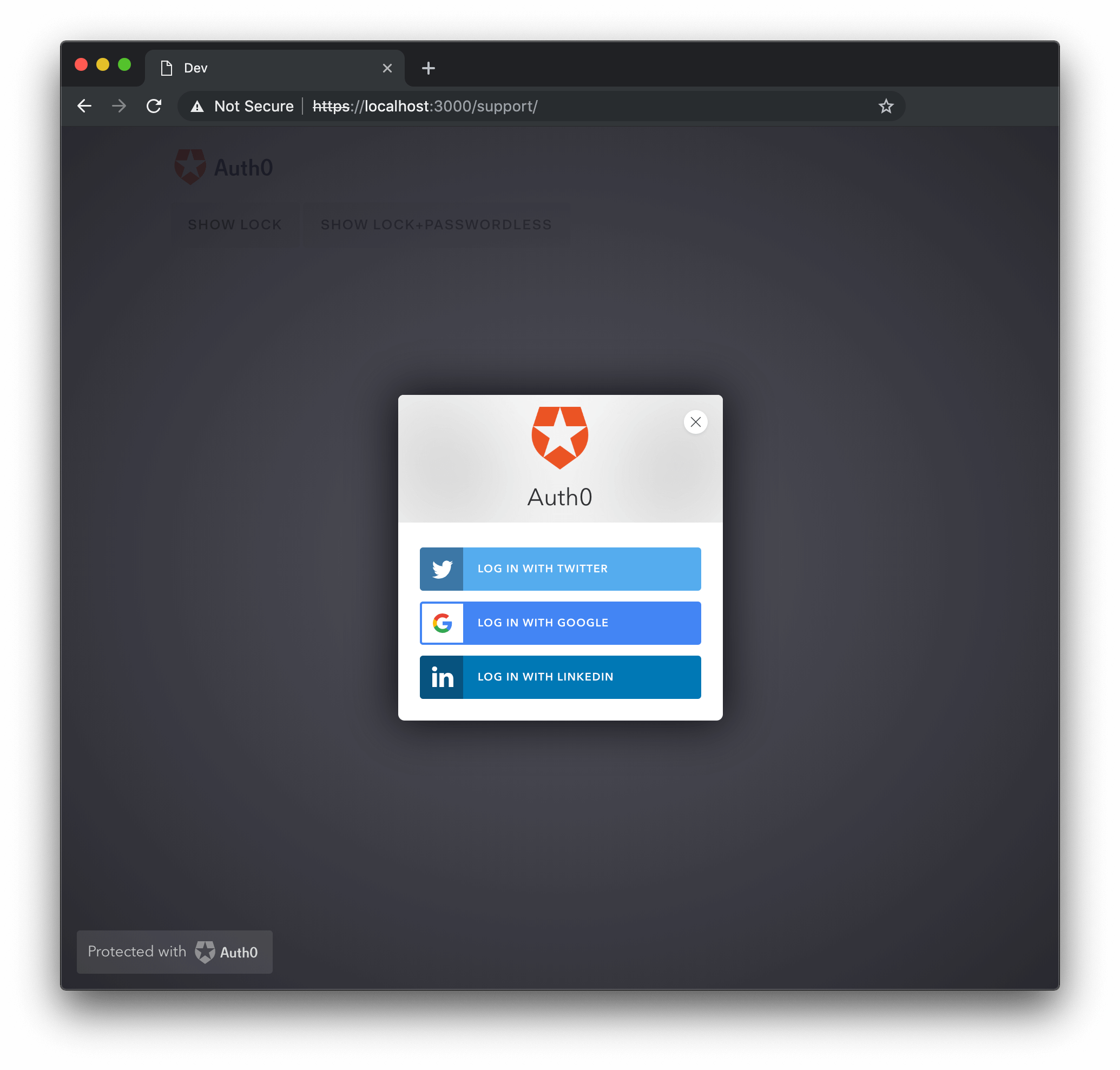
Array of connections that will be used for the `signin|signup|reset` actions. Defaults to all enabled connections.
`allowedConnections: ['Username-Password-Authentication']`
`allowedConnections: ['twitter', 'facebook', 'linkedin']`
`allowedConnections: ['qraftlabs.com']`
Examples of `allowedConnections`:
### autoclose \{Boolean}
Determines whether or not the Lock will be closed automatically after a successful sign in. Defaults to false. If the Lock is not `closable` it won't be closed, even if this option is set to true.
`autoclose: true`
### autofocus \{Boolean}
If true, the focus is set to the first field on the widget. Defaults to `false` when being rendered on a mobile device, or if a `container` option is provided; defaults to `true` in all other cases.
`autofocus: false`
### avatar \{Object}
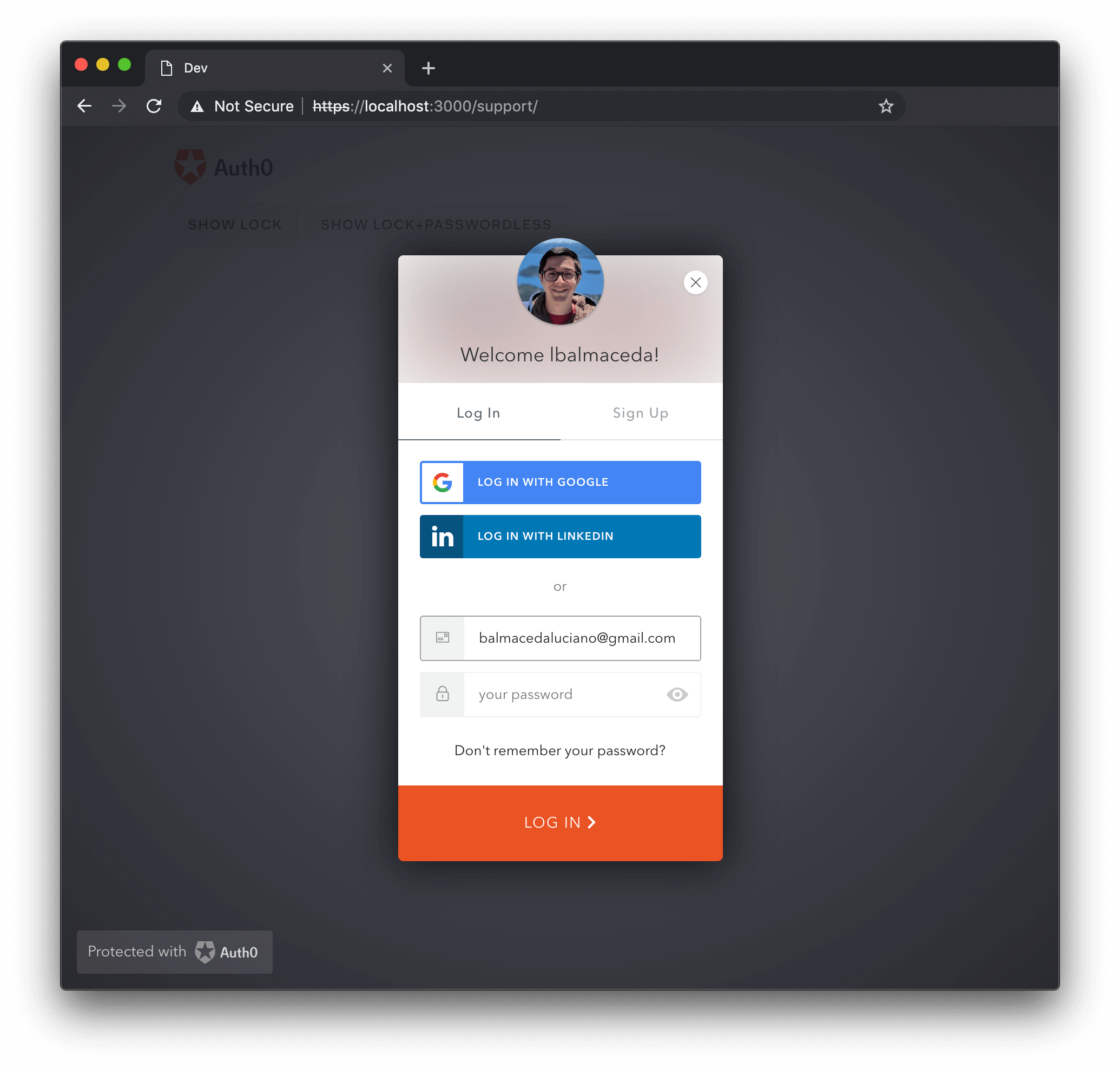
By default, Gravatar is used to fetch the user avatar and display name, but you can obtain them from anywhere with the `avatar` option.
```js lines theme={null}
var options = {
avatar: {
url: function(email, cb) {
// Obtain the avatar url for the email input by the user, Lock
// will preload the image before displaying it.
// Note that in case of an error you call cb with the error in
// the first arg instead of `null`.
var url = obtainAvatarUrl(email);
cb(null, url);
},
displayName: function(email, cb) {
// Obtain the display name for the email input by the user.
// Note that in case of an error you call cb with the error in
// the first arg instead of `null`.
var displayName = obtainDisplayName(email);
cb(null, displayName);
}
}
};
```
Or, if you want to display no avatar at all, simply pass in `null`.
`avatar: null`
Default behavior with Gravatar:
### closable \{Boolean}
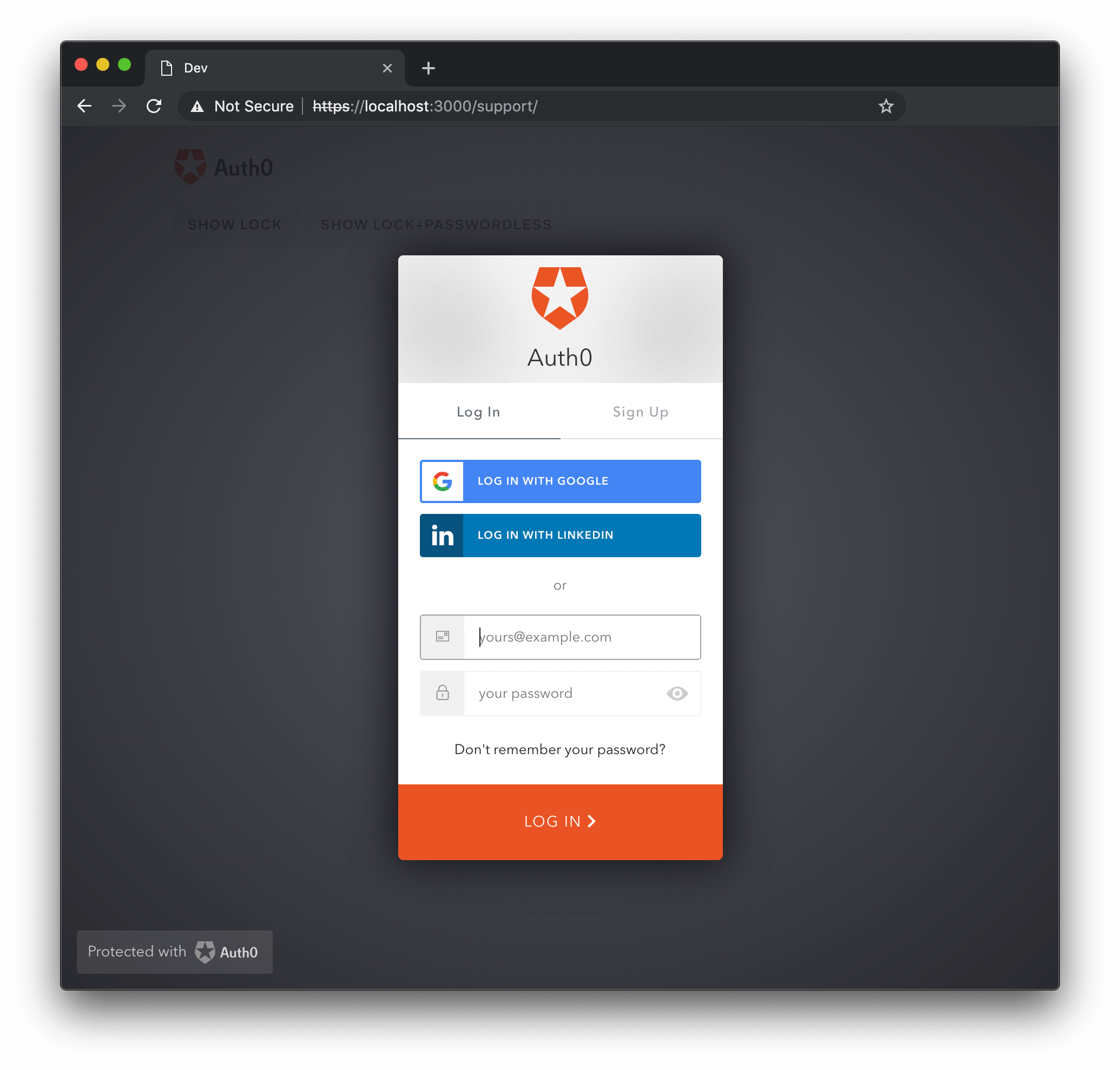
Determines whether or not the Lock can be closed. When a `container` option is provided its value is always `false`, otherwise it defaults to `true`.
`closable: false`
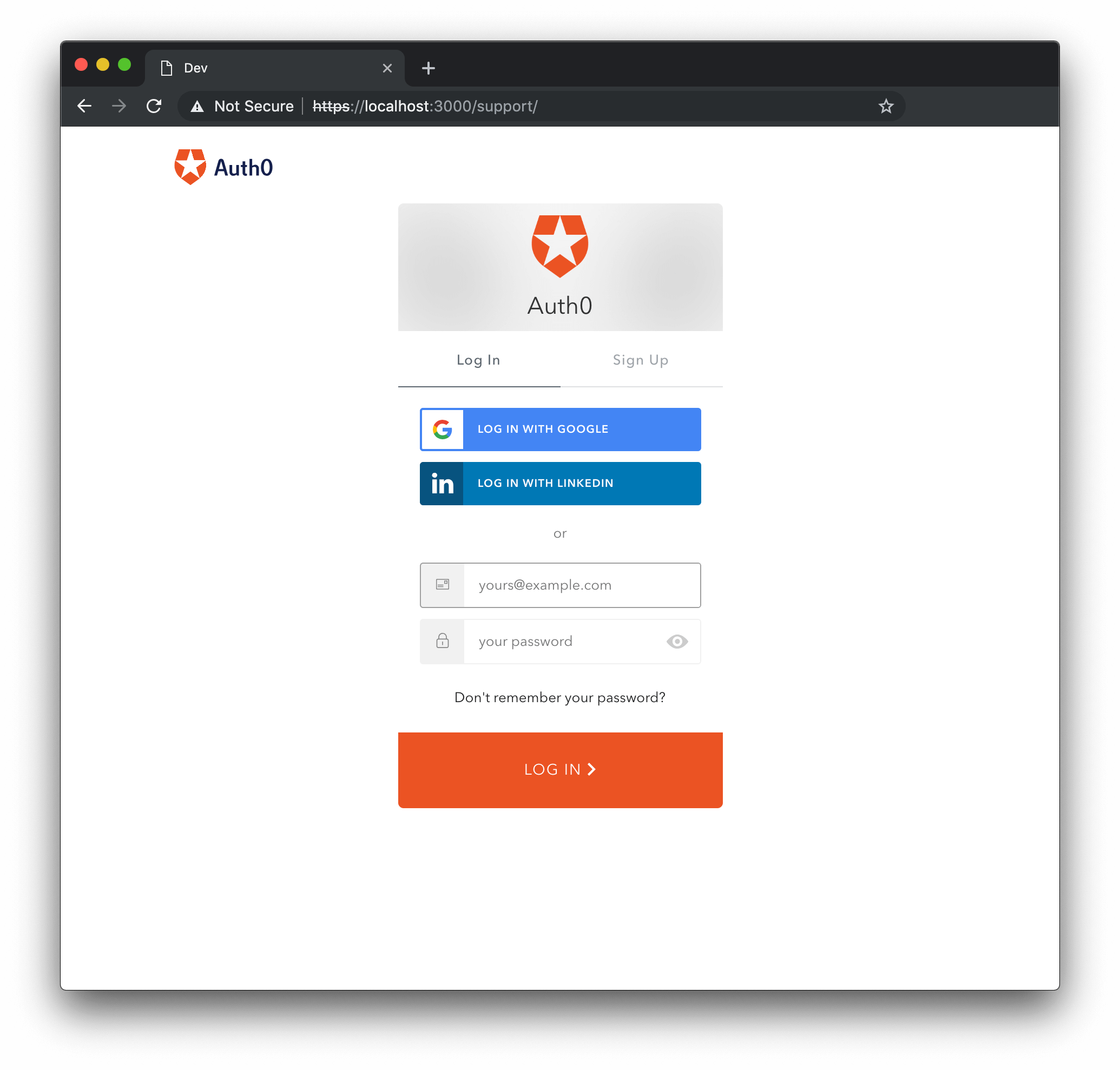
### container \{String}
The `id` of the html element where the widget will be shown.
This makes the widget appear inline within your `div` instead of in a modal pop-out window.
```html lines theme={null}
```
### flashMessage \{Object}
Shows an `error` or `success` flash message when Lock is shown. This object has the following properties:
* type \{String}: The message type, supported types are `error`, `info`, and `success`
* text \{String}: The text to show.
```js lines theme={null}
var options = {
flashMessage: {
type: 'success',
text: 'Welcome!'
}
};
```
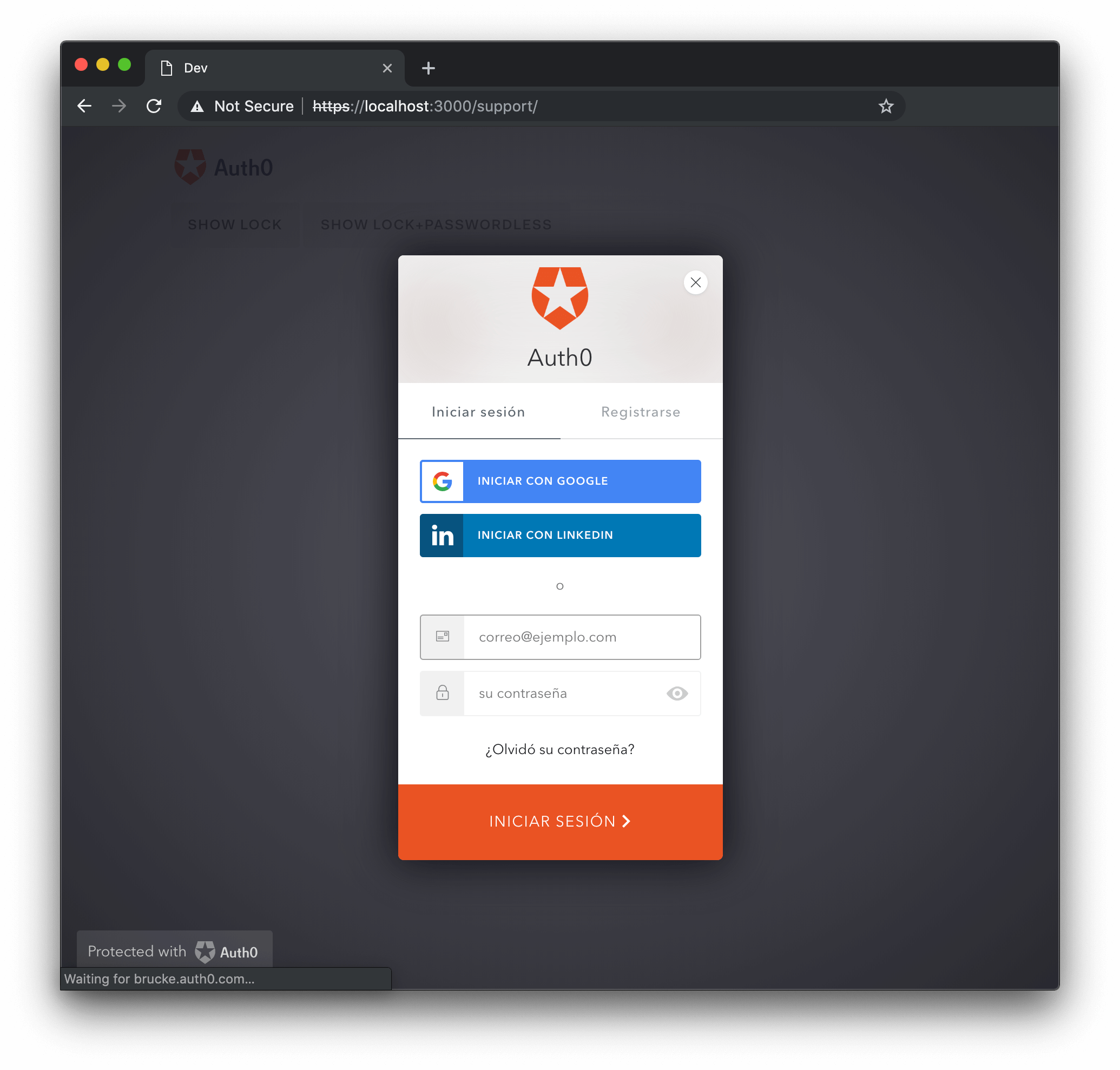
### language \{String}
Specifies the language of the widget. Defaults to "en". See the [internationalization directory](https://github.com/auth0/lock/blob/master/src/i18n/) for a current list of provided languages.
`language: 'es'`
### languageDictionary \{Object}
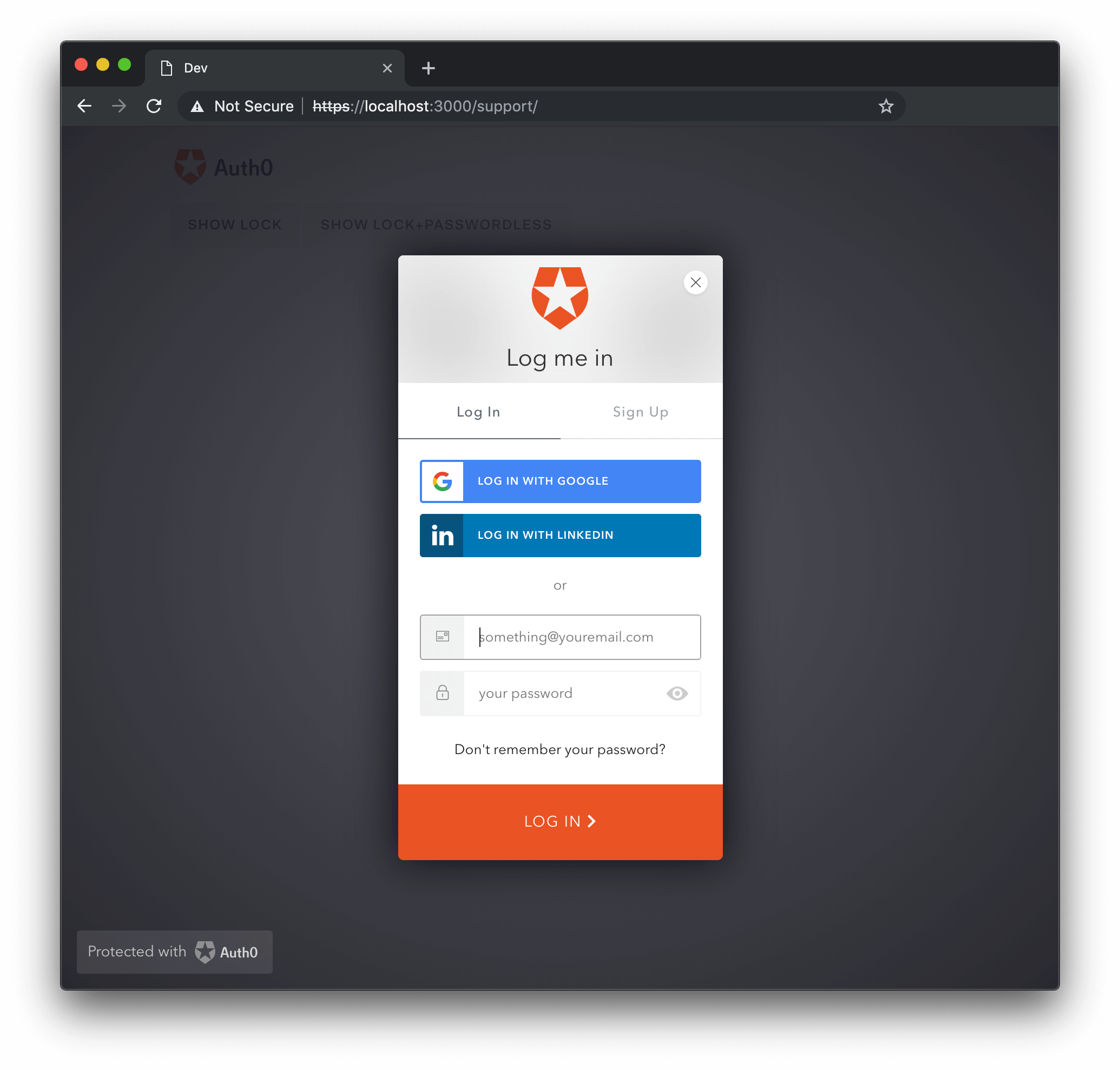
Allows customization of every piece of text displayed in the Lock. Defaults to {"{}"}. See English language [Language Dictionary Specification](https://github.com/auth0/lock/blob/master/src/i18n/en.js) for the full list of `languageDictionary` values able to be altered with this object.
```js lines theme={null}
var options = {
languageDictionary: {
emailInputPlaceholder: "something@youremail.com",
title: "Log me in"
},
};
```
Additionally, check out the [Customizing Error Messages](/docs/customize/login-pages/classic-login/customize-lock-error-messages) page or the [Internationalization](/docs/customize/internationalization-and-localization/lock-internationalization) page for more information about the use of the `languageDictionary` option.
### popupOptions \{Object}
Allows the customization the location of the popup in the screen. Any position and size feature allowed by window\.open is accepted. Defaults to {"{}"}.
Options for the `window.open` features. This only applies if `redirect` is set to `false`.
```js lines theme={null}
var options = {
auth: {
redirect: false
},
popupOptions: { width: 300, height: 400, left: 200, top: 300 }
};
```
### rememberLastLogin \{Boolean}
Determines whether or not to show a screen that allows you to quickly log in with the account you used the last time.
Requests Single Sign-on (SSO) data and enables a **Last time you signed in with** message. Defaults to `true`. This information comes from the user's Auth0 session, so this ability will last as long as their Auth0 session would (which is configurable).
`rememberLastLogin: false`
New tenants [automatically have Seamless SSO enabled](/docs/get-started/tenant-settings/enable-sso-for-legacy-tenants). With this enabled, the `rememberLastLogin` option will not be relevant because if there is a session in place then the Universal Login page will not be displayed at all. Using Seamless SSO is highly recommended because it provides a seamless authentication experience: users log in once and won’t have to enter credentials again when they navigate either through the applications you have built, or third party apps. If the user is not logged in they will be redirected to the login screen, as expected. Additionally, the **Last time you signed in with** message will not be available under the following circumstances:
* You used Lock in a [Hosted Login Page](/docs/authenticate/login/auth0-universal-login) with the session established using [Passwordless authentication](/docs/libraries/lock/lock-configuration#passwordlessmethod-string-).
* You used Lock in an [embedded login scenario](/docs/authenticate/login/universal-vs-embedded-login) where `responseType: code` (indicating the [Authorization Code Flow](/docs/get-started/authentication-and-authorization-flow/authorization-code-flow), which is used for Regular Web Apps).
### scrollGlobalMessagesIntoView \{Boolean}
Determines whether or not a `globalMessage` should be scrolled into the user's viewport. Defaults to `true`.
`scrollGlobalMessagesIntoView: false`
## Theme Options
Theme options are grouped in the `theme` property of the `options` object.
```js lines theme={null}
var options = {
theme: {
labeledSubmitButton: false,
logo: "https://example.com/assets/logo.png",
primaryColor: "green",
authButtons: {
connectionName: {
displayName: "...",
primaryColor: "...",
foregroundColor: "...",
icon: "https://.../logo.png"
}
}
}
};
```
### authButtons \{Object}
Allows the customization of buttons in Lock with custom OAuth2 connections. Each custom connection whose button you desire to customize should be listed by name, each with their own set of parameters. The customizable parameters are listed below:
* **displayName** \{String}: The name to show instead of the connection name when building the button title, such as `LOGIN WITH MYCONNECTION` for login).
* **primaryColor** \{String}: The button's background color. Defaults to `#eb5424`.
* **foregroundColor** \{String}: The button's text color. Defaults to `#FFFFFF`.
* **icon** \{String}: The URL of the icon for this connection. For example: `http://site.com/logo.png`.
```js lines theme={null}
var options = {
theme: {
authButtons: {
"testConnection": {
displayName: "Test Conn",
primaryColor: "#b7b7b7",
foregroundColor: "#000000",
icon: "http://example.com/icon.png"
},
"testConnection2": {
primaryColor: "#000000",
foregroundColor: "#ffffff",
}
}
}
};
```
### labeledSubmitButton \{Boolean}
This option indicates whether or not the submit button should have a label, and defaults to `true`. When set to `false`, an icon will be shown instead.
```js lines theme={null}
var options = {
theme: {
labeledSubmitButton: false
}
};
```
If the label is set to true, which is the default, the label's text can be customized through the [languageDictionary](#languagedictionary-object-) option.
### logo \{String}
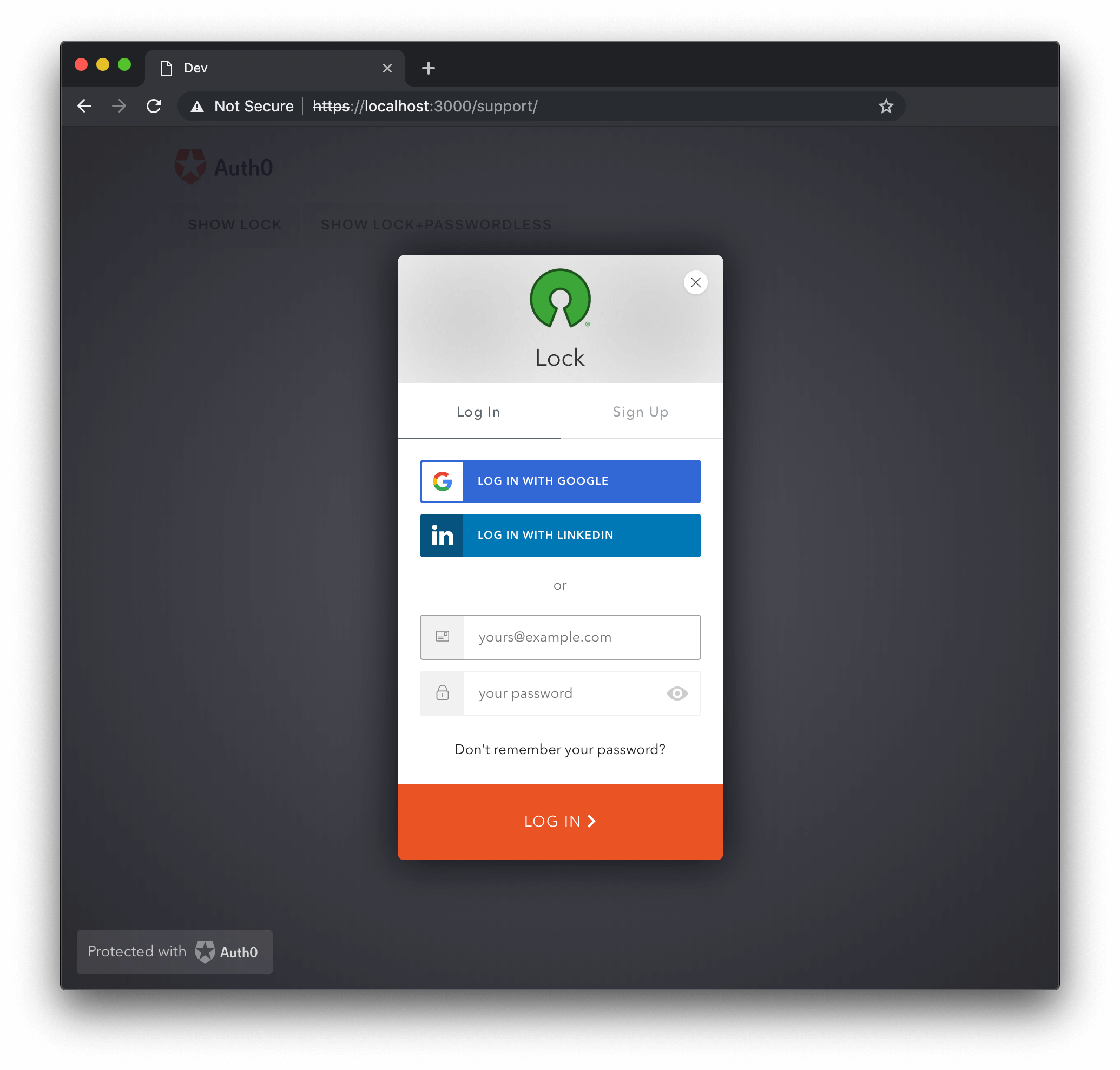
The value for `logo` is a URL for an image that will be placed in the Lock's header, and defaults to Auth0's logo. It has a recommended max height of `58px` for a better user experience.
```js lines theme={null}
var options = {
theme: {
logo: 'https://example.com/logo.png'
}
};
```
### primaryColor \{String}
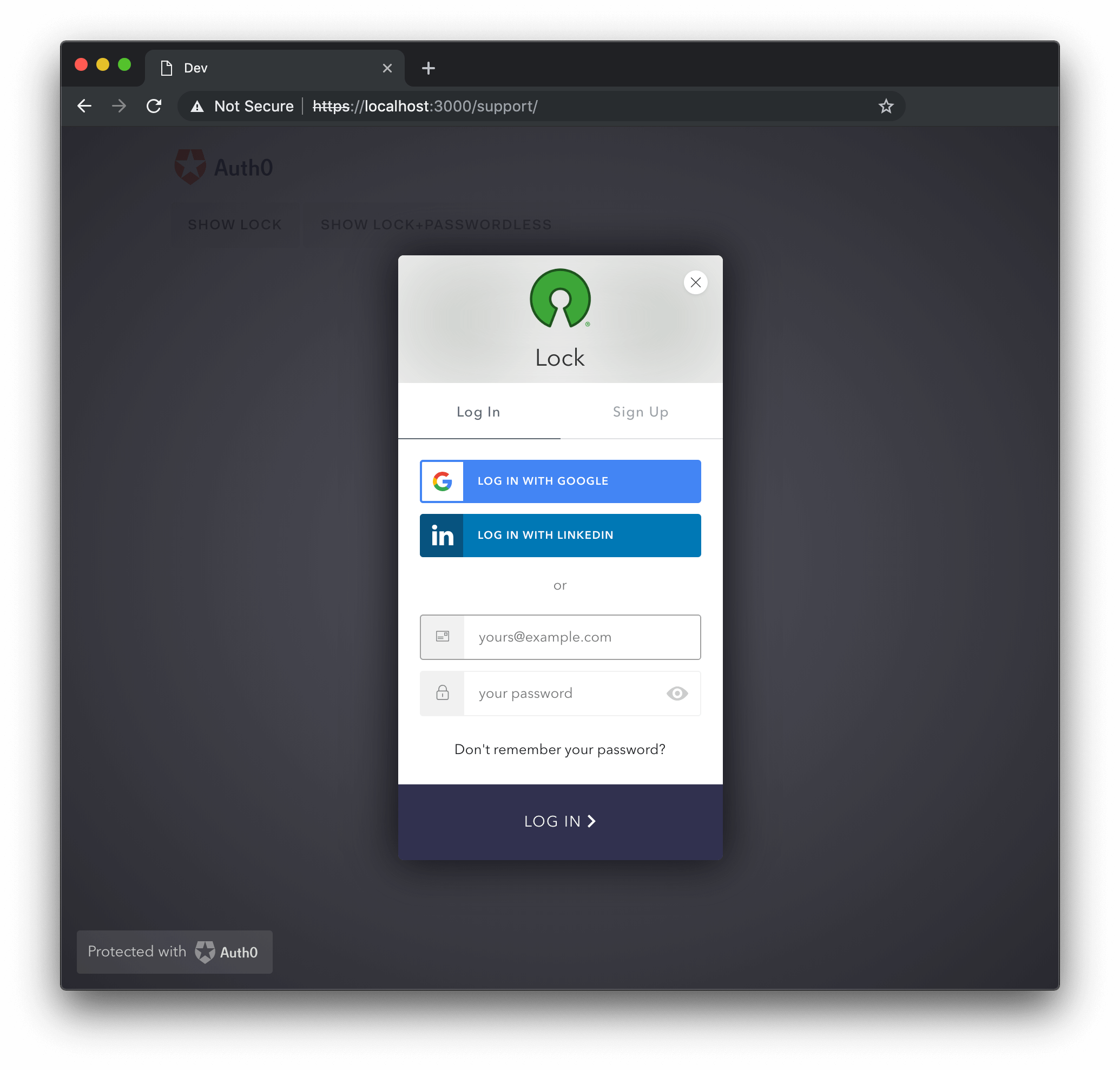
The `primaryColor` property defines the primary color of the Lock; all colors used in the widget will be calculated from it. This option is useful when providing a custom `logo`, to ensure all colors go well together with the `logo`'s color palette. Defaults to `#ea5323`.
```js lines theme={null}
var options = {
theme: {
logo: 'https://example.com/logo.png',
primaryColor: '#31324F'
}
};
```
## Authentication Options
Authentication options are grouped in the `auth` property of the `options` object.
The default scope used by Lock is `openid profile email`.
```js lines theme={null}
var options = {
auth: {
params: {
param1: "value1",
scope: "openid profile email"
},
autoParseHash: true,
redirect: true,
redirectUrl: "some url",
responseMode: "form_post",
responseType: "token",
sso: true,
connectionScopes: {
connectionName: [ 'scope1', 'scope2' ]
}
}
};
```
### audience \{String}
The `audience` option indicates the API which will be consuming the Access Token that is received after authentication.
export const codeExample = `var options = {
auth: {
audience: 'https://{yourDomain}/userinfo',
}
}`;
### autoParseHash \{Boolean}
When `autoParseHash` is set to `true`, Lock will parse the `window.location.hash` string when instantiated. If set to `false`, you'll have to manually resume authentication using the [resumeAuth](/docs/libraries/lock/lock-api-reference) method.
```js lines theme={null}
var options = {
auth: {
autoParseHash: false
}
};
```
### connectionScopes \{Object}
This option allows you to set scopes to be sent to the oauth2/social connection for authentication.
```js lines theme={null}
var options = {
auth: {
connectionScopes: {
'facebook': ['scope1', 'scope2']
}
}
};
```
A listing of particular scopes for your social connections can be acquired from the provider in question. For example, [Facebook for Developers](https://developers.facebook.com/docs/facebook-login/permissions/) reference has a listing of separate permissions that can be requested for your connection.
### params \{Object}
You can send parameters when starting a login by adding them to the options object. The example below adds a `state` parameter with a value equal to `foo` and also adds a `scope` parameter (which includes the scope, and then the requested attributes).
```js lines theme={null}
var options = {
auth: {
params: {
state: 'foo',
scope: 'openid email user_metadata app_metadata picture'
}
}
};
```
For more details about supported parameters, see [Lock Authentication Parameters](/docs/libraries/lock/lock-authentication-parameters).
### redirect \{Boolean}
Defaults to true. When set to true, redirect mode will be used. If set to false, [popup mode](/docs/libraries/lock/lock-authentication-modes) is chosen.
```js lines theme={null}
var options = {
auth: {
redirect: false
}
};
```
### redirectUrl \{String}
The URL Auth0 will redirect back to after authentication. Defaults to the empty string "" (no redirect URL).
```js lines theme={null}
var options = {
auth: {
redirectUrl: 'http://testurl.com'
}
};
```
When the `redirectUrl` is provided (set to non blank value) the `responseType` option will be defaulted to `code` if not manually set.
### responseMode \{String}
Should be set to `"form_post"` if you want the code or the token to be transmitted via an HTTP POST request to the `redirectUrl`, instead of being included in its query or fragment parts.
Otherwise, this option should be omitted, and is omitted by default.
```js lines theme={null}
var options = {
auth: {
responseMode: 'form_post'
}
};
```
### responseType \{String}
The value of `responseType` should be set to "token" for Single-Page Applications, and "code" otherwise. Defaults to "code" when redirectUrl is provided, and to "token" otherwise.
```js lines theme={null}
var options = {
auth: {
responseType: 'token'
}
};
```
When the `responseType` is set to `code`, Lock will never show the **Last time you logged in with** message, and will always prompt the user for credentials.
## sso \{Boolean}
Defaults to true. When set to true, enables [Single Sign-On](/docs/authenticate/single-sign-on) in Lock.
```js lines theme={null}
var options = {
auth: {
sso: false
}
};
```
## Database Options
### additionalSignUpFields \{Array}
Extra input fields can be added to the sign up screen with the `additionalSignUpFields` option. Each option added in this manner will then be added to that user's `user_metadata`. To learn more, read [Understand How Metadata Works in User Profiles](/docs/manage-users/user-accounts/metadata). Every input must have a `name` and a `placeholder`, and an `icon` URL can also be provided. Also, the initial value can be provided with the `prefill` option, which can be a string with the value or a function that obtains it. Other options depend on the type of the field, which is defined via the type option and defaults to "text".
The `additionalSignUpFields` are intended for use with database signups only. If you have social sign ups too, you can ask for the additional information after the users sign up (see this [page about custom signup](/docs/libraries/custom-signup) for more details). You can use the `databaseAlternativeSignupInstructions` i18n key to display these instructions.
The new fields are rendered below the regular sign up input fields in the order they are provided.
#### Text Fields
Text fields are the default type of additional signup field. Note that a `validator` function can also be provided.
```js lines theme={null}
var options = {
additionalSignUpFields: [{
name: "address",
placeholder: "enter your address",
// The following properties are optional
icon: "https://example.com/assests/address_icon.png",
prefill: "street 123",
validator: function(address) {
return {
valid: address.length >= 10,
hint: "Must have 10 or more chars" // optional
};
}
},
{
name: "full_name",
placeholder: "Enter your full name"
}]
}
```
If you don't specify a `validator` the text field will be **required**. If you want to make the text field optional, use a validator that always returns `true` like this:
```js lines theme={null}
var options = {
additionalSignUpFields: [{
name: "favorite_color",
placeholder: "Enter your favorite color (optional)",
validator: function() {
return true;
}
}]
}
```
If you want to save the value of the attribute in the root of your profile, use `storage: 'root'`. Only a subset of values can be stored this way. The list of attributes that can be added to your root profile is [here](https://auth0.com/docs/api/management/v2#!/Users/patch_users_by_id). By default, every additional sign up field is stored inside the user\_metadata object.
```js lines theme={null}
var options = {
additionalSignUpFields: [{
name: "name",
storage: "root"
}]
};
```
#### Select Field
The signup field `type: "select"` will allow you to use select elements for the user to choose a value from.
```js lines theme={null}
var options = {
additionalSignUpFields: [{
type: "select",
name: "location",
placeholder: "choose your location",
options: [
{value: "us", label: "United States"},
{value: "fr", label: "France"},
{value: "ar", label: "Argentina"}
],
// The following properties are optional
icon: "https://example.com/assests/location_icon.png",
prefill: "us"
}]
}
```
The `options` array items for `select` fields must adhere to the following format:
`{label: “non empty string”, value: “non empty string”}`, and at least one option must be defined.
The `options` and `prefill` values can be provided through a function:
```js lines theme={null}
var options = {
additionalSignUpFields: [{
type: "select",
name: "location",
placeholder: "choose your location",
options: function(cb) {
// obtain options, in case of error you call cb with the error in the
// first arg instead of null
cb(null, options);
},
icon: "https://example.com/assests/location_icon.png",
prefill: function(cb) {
// obtain prefill, in case of error you call cb with the error in the
// first arg instead of null
cb(null, prefill);
}
}]
}
```
#### Checkbox Field
The third type of custom signup field is the `type: "checkbox"`. The `prefill` value can determine the default state of the checkbox (`true` or `false`), and it is required.
```js lines theme={null}
var options = {
additionalSignUpFields: [{
type: "checkbox",
name: "newsletter",
prefill: "true",
placeholder: "I hereby agree that I want to receive marketing emails from your company"
}]
}
```
#### Hidden field
The signup field `type: "hidden"` will allow you to use a hidden input with a fixed value.
```js lines theme={null}
var options = {
additionalSignUpFields: [{
type: "hidden",
name: "signup_code",
value: "abc123"
}]
}
```
Some use cases may be able to use `additionalSignUpFields` data for email templates, such as an option for language preferences, the value of which could then be used to set the language of templated email communications.
### allowLogin \{Boolean}
When set to `false` the widget won't display the login screen. This is useful if you want to use the widget just for signups (the login and signup tabs in the signup screen will be hidden) or to reset passwords (the back button in the forgot password screen will be hidden). In such cases you may also need to specify the `initialScreen`, `allowForgotPassword` and `allowSignUp` options. It defaults to `true`.
`allowLogin: false`
### allowForgotPassword \{Boolean}
When set to false, `allowForgotPassword` hides the "Don't remember your password?" link in the Login screen, making the Forgot Password screen unreachable. Defaults to true. If you are using a database connection with a custom database which doesn't have a change password script the Forgot Password screen won't be available.
`allowForgotPassword: false`
### allowSignUp \{Boolean}
When set to `false`, hides the login and sign up tabs in the login screen, making the sign up screen unreachable. Defaults to `true`. Keep in mind that if the database connection has sign ups disabled or you are using a custom database which doesn't have a create script, then the sign up screen won't be available.
Also bear in mind that this option **only** controls client-side appearance, and does not completely stop new sign ups from determined anonymous visitors. If you are looking to fully prevent new users from signing up, you must use the **Disable Sign Ups** option in the dashboard, in the connection settings.
`allowSignUp: false`
### defaultDatabaseConnection \{String}
Specifies the database connection that will be used when there is more than one available.
`defaultDatabaseConnection: 'test-database'`
### initialScreen \{String}
The name of the screen that will be shown when the widget is opened. Valid values are `login`, `signUp`, and `forgotPassword`. If this option is left unspecified, the widget will default to the first screen that is available from that list.
`initialScreen: 'forgotPassword'`
### loginAfterSignUp \{Boolean}
Determines whether or not the user will be automatically signed in after a successful sign up. Defaults to `true`.
`loginAfterSignUp: false`
### forgotPasswordLink \{String}
Set the URL for a page that allows the user to reset their password. When set to a non-empty string, the user will be sent to the provided URL when clicking the "Don't remember your password?" link in the login screen.
`forgotPasswordLink: 'https://yoursite.com/reset-password'`
### showTerms \{Boolean}
When set to `true` displays the `languageDictionary.signUpTerms` string. Defaults to `true`.
`showTerms: false`
### mustAcceptTerms \{Boolean}
When set to `true` displays a checkbox input alongside the terms and conditions that must be checked before signing up. The terms and conditions can be specified via the `languageDictionary` option. This option will only take effect for users signing up with database connections. Defaults to `false`.
`mustAcceptTerms: true`
### prefill \{Object}
Allows to set the initial value for the email and/or username inputs. When omitted, no initial value will be provided.
```js lines theme={null}
var options = {
prefill: {
email: "someone@auth0.com",
username: "someone",
phoneNumber: "+1234567890"
}
};
```
### signUpLink \{String}
Set the URL to be requested when clicking on the Signup button. When set to a non empty string, this option forces `allowSignUp` to `true`.
`signUpLink: 'https://yoursite.com/signup'`
### usernameStyle \{String}
Determines what will be used to identify the user for a Database connection that has the `requires_username` flag set (if it is not set, `usernameStyle` option will be ignored). Possible values are `"username"` and `"email"`. By default both `username` and `email` are allowed; setting this option will limit logins to use one or the other.
`usernameStyle: 'username'`
## Enterprise Options
### defaultEnterpriseConnection \{String}
Specifies the enterprise connection which allows to login using a username and a password that will be used when there is more than one available or there is a database connection. If a `defaultDatabaseConnection` is provided the database connection will be used and this option will be ignored.
`defaultEnterpriseConnection: 'test-database'`
### defaultADUsernameFromEmailPrefix \{Boolean}
Resolve the AD placeholder username from the email's prefix. Defaults to `true`.
`defaultADUsernameFromEmailPrefix: false`
## Passwordless Options
### passwordlessMethod \{String}
When using `Auth0LockPasswordless` with an email connection, you can use this option to pick between sending a [code](/docs/authenticate/passwordless) or a [magic link](/docs/authenticate/passwordless) to authenticate the user. Available values for email connections are `code` and `link`. Defaults to `code`. SMS passwordless connections will always use `code`.
`passwordlessMethod: code`
## Other Options
### configurationBaseUrl \{String}
Overrides the application settings base URL. By default, it uses the provided domain. This option is only necessary if your specific use case dictates that your application does not use the default behavior.
`configurationBaseUrl: "https://www.example.com"`
### languageBaseUrl \{String}
Overrides the language source url for Auth0's provided translations. By default, this option uses Auth0's CDN URL `https://cdn.auth0.com` since this is where all of the provided translations are stored. By providing another value, you can use another source for the language translations if needed.
`languageBaseUrl: "https://www.example.com"`
### hashCleanup \{Boolean}
When the `hashCleanup` option is enabled, it will remove the hash part of the callback URL after the user authentication. It defaults to true.
`hashCleanup: false`
### connectionResolver \{Function}
When in use, provides an extensibility point to make it possible to choose which connection to use based on the username information.
Has `username`, `context`, and `callback` as parameters. The callback expects an object like: `{type: 'database', name: 'connection name'}`. **This only works for database connections.** Keep in mind that this resolver will run in the form's `onSubmit` event, so keep it simple and fast.
This is a beta feature. If you find a bug, please open a GitHub [issue](https://github.com/auth0/lock/issues/new).
### leeway \{Integer}
The `leeway` option can be set to an integer - a value in seconds - which can be used to account for clock skew in ID Token expirations. Typically the value is no more than a minute or two at maximum.
`leeway: 30`
 ### allowedConnections \{Array}
Array of connections that will be used for the `signin|signup|reset` actions. Defaults to all enabled connections.
`allowedConnections: ['Username-Password-Authentication']`
`allowedConnections: ['twitter', 'facebook', 'linkedin']`
`allowedConnections: ['qraftlabs.com']`
Examples of `allowedConnections`:
### allowedConnections \{Array}
Array of connections that will be used for the `signin|signup|reset` actions. Defaults to all enabled connections.
`allowedConnections: ['Username-Password-Authentication']`
`allowedConnections: ['twitter', 'facebook', 'linkedin']`
`allowedConnections: ['qraftlabs.com']`
Examples of `allowedConnections`:
 ### autoclose \{Boolean}
Determines whether or not the Lock will be closed automatically after a successful sign in. Defaults to false. If the Lock is not `closable` it won't be closed, even if this option is set to true.
`autoclose: true`
### autofocus \{Boolean}
If true, the focus is set to the first field on the widget. Defaults to `false` when being rendered on a mobile device, or if a `container` option is provided; defaults to `true` in all other cases.
`autofocus: false`
### avatar \{Object}
By default, Gravatar is used to fetch the user avatar and display name, but you can obtain them from anywhere with the `avatar` option.
```js lines theme={null}
var options = {
avatar: {
url: function(email, cb) {
// Obtain the avatar url for the email input by the user, Lock
// will preload the image before displaying it.
// Note that in case of an error you call cb with the error in
// the first arg instead of `null`.
var url = obtainAvatarUrl(email);
cb(null, url);
},
displayName: function(email, cb) {
// Obtain the display name for the email input by the user.
// Note that in case of an error you call cb with the error in
// the first arg instead of `null`.
var displayName = obtainDisplayName(email);
cb(null, displayName);
}
}
};
```
Or, if you want to display no avatar at all, simply pass in `null`.
`avatar: null`
Default behavior with Gravatar:
### autoclose \{Boolean}
Determines whether or not the Lock will be closed automatically after a successful sign in. Defaults to false. If the Lock is not `closable` it won't be closed, even if this option is set to true.
`autoclose: true`
### autofocus \{Boolean}
If true, the focus is set to the first field on the widget. Defaults to `false` when being rendered on a mobile device, or if a `container` option is provided; defaults to `true` in all other cases.
`autofocus: false`
### avatar \{Object}
By default, Gravatar is used to fetch the user avatar and display name, but you can obtain them from anywhere with the `avatar` option.
```js lines theme={null}
var options = {
avatar: {
url: function(email, cb) {
// Obtain the avatar url for the email input by the user, Lock
// will preload the image before displaying it.
// Note that in case of an error you call cb with the error in
// the first arg instead of `null`.
var url = obtainAvatarUrl(email);
cb(null, url);
},
displayName: function(email, cb) {
// Obtain the display name for the email input by the user.
// Note that in case of an error you call cb with the error in
// the first arg instead of `null`.
var displayName = obtainDisplayName(email);
cb(null, displayName);
}
}
};
```
Or, if you want to display no avatar at all, simply pass in `null`.
`avatar: null`
Default behavior with Gravatar:
 ### closable \{Boolean}
Determines whether or not the Lock can be closed. When a `container` option is provided its value is always `false`, otherwise it defaults to `true`.
`closable: false`
### closable \{Boolean}
Determines whether or not the Lock can be closed. When a `container` option is provided its value is always `false`, otherwise it defaults to `true`.
`closable: false`
 ### container \{String}
The `id` of the html element where the widget will be shown.
This makes the widget appear inline within your `div` instead of in a modal pop-out window.
```html lines theme={null}
```
### container \{String}
The `id` of the html element where the widget will be shown.
This makes the widget appear inline within your `div` instead of in a modal pop-out window.
```html lines theme={null}
```
 ### flashMessage \{Object}
Shows an `error` or `success` flash message when Lock is shown. This object has the following properties:
* type \{String}: The message type, supported types are `error`, `info`, and `success`
* text \{String}: The text to show.
```js lines theme={null}
var options = {
flashMessage: {
type: 'success',
text: 'Welcome!'
}
};
```
### language \{String}
Specifies the language of the widget. Defaults to "en". See the [internationalization directory](https://github.com/auth0/lock/blob/master/src/i18n/) for a current list of provided languages.
`language: 'es'`
### flashMessage \{Object}
Shows an `error` or `success` flash message when Lock is shown. This object has the following properties:
* type \{String}: The message type, supported types are `error`, `info`, and `success`
* text \{String}: The text to show.
```js lines theme={null}
var options = {
flashMessage: {
type: 'success',
text: 'Welcome!'
}
};
```
### language \{String}
Specifies the language of the widget. Defaults to "en". See the [internationalization directory](https://github.com/auth0/lock/blob/master/src/i18n/) for a current list of provided languages.
`language: 'es'`
 ### languageDictionary \{Object}
Allows customization of every piece of text displayed in the Lock. Defaults to {"{}"}. See English language [Language Dictionary Specification](https://github.com/auth0/lock/blob/master/src/i18n/en.js) for the full list of `languageDictionary` values able to be altered with this object.
```js lines theme={null}
var options = {
languageDictionary: {
emailInputPlaceholder: "something@youremail.com",
title: "Log me in"
},
};
```
### languageDictionary \{Object}
Allows customization of every piece of text displayed in the Lock. Defaults to {"{}"}. See English language [Language Dictionary Specification](https://github.com/auth0/lock/blob/master/src/i18n/en.js) for the full list of `languageDictionary` values able to be altered with this object.
```js lines theme={null}
var options = {
languageDictionary: {
emailInputPlaceholder: "something@youremail.com",
title: "Log me in"
},
};
```
 Additionally, check out the [Customizing Error Messages](/docs/customize/login-pages/classic-login/customize-lock-error-messages) page or the [Internationalization](/docs/customize/internationalization-and-localization/lock-internationalization) page for more information about the use of the `languageDictionary` option.
### popupOptions \{Object}
Allows the customization the location of the popup in the screen. Any position and size feature allowed by window\.open is accepted. Defaults to {"{}"}.
Options for the `window.open` features. This only applies if `redirect` is set to `false`.
```js lines theme={null}
var options = {
auth: {
redirect: false
},
popupOptions: { width: 300, height: 400, left: 200, top: 300 }
};
```
### rememberLastLogin \{Boolean}
Determines whether or not to show a screen that allows you to quickly log in with the account you used the last time.
Requests
Additionally, check out the [Customizing Error Messages](/docs/customize/login-pages/classic-login/customize-lock-error-messages) page or the [Internationalization](/docs/customize/internationalization-and-localization/lock-internationalization) page for more information about the use of the `languageDictionary` option.
### popupOptions \{Object}
Allows the customization the location of the popup in the screen. Any position and size feature allowed by window\.open is accepted. Defaults to {"{}"}.
Options for the `window.open` features. This only applies if `redirect` is set to `false`.
```js lines theme={null}
var options = {
auth: {
redirect: false
},
popupOptions: { width: 300, height: 400, left: 200, top: 300 }
};
```
### rememberLastLogin \{Boolean}
Determines whether or not to show a screen that allows you to quickly log in with the account you used the last time.
Requests 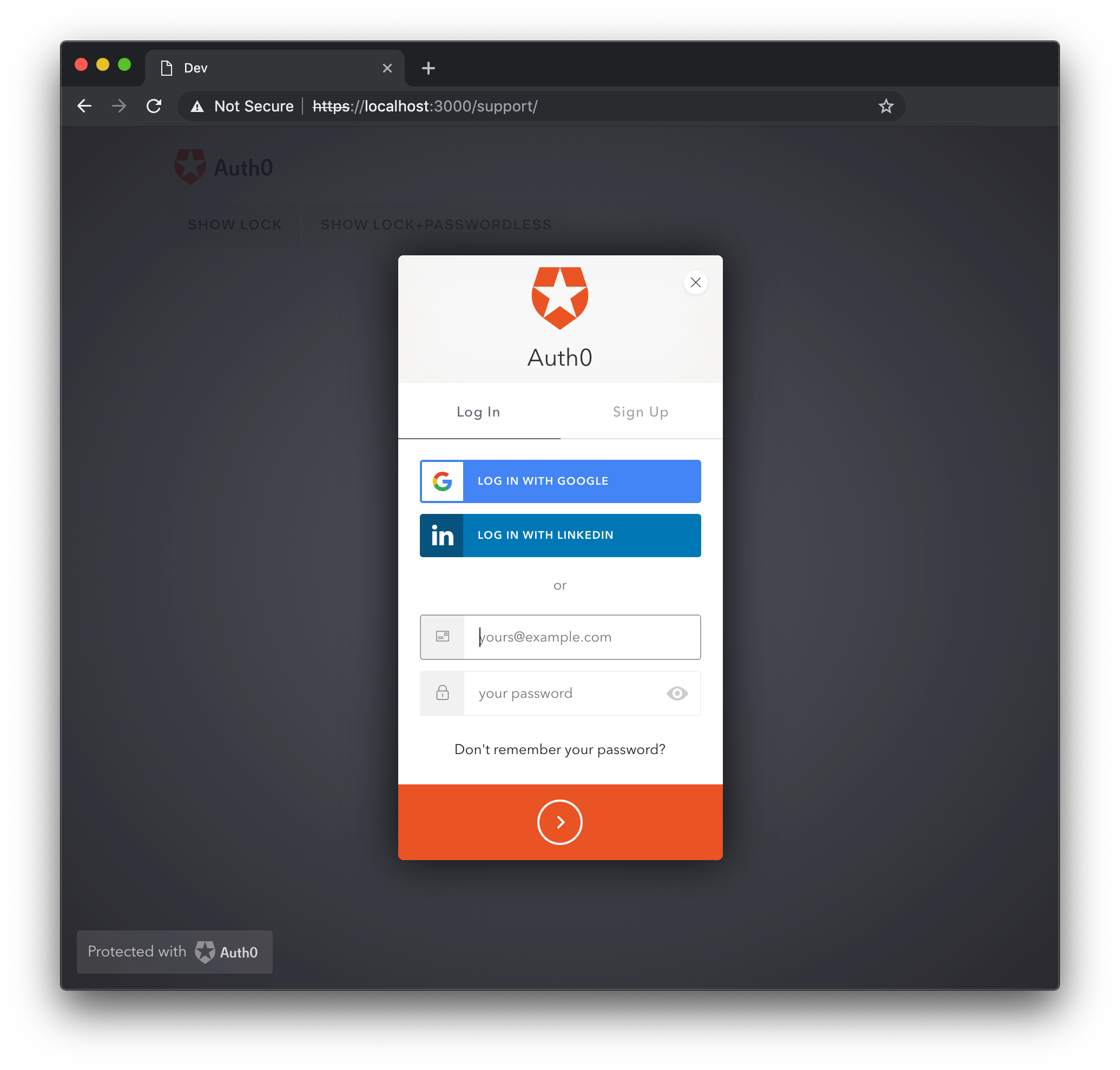 If the label is set to true, which is the default, the label's text can be customized through the [languageDictionary](#languagedictionary-object-) option.
### logo \{String}
The value for `logo` is a URL for an image that will be placed in the Lock's header, and defaults to Auth0's logo. It has a recommended max height of `58px` for a better user experience.
```js lines theme={null}
var options = {
theme: {
logo: 'https://example.com/logo.png'
}
};
```
If the label is set to true, which is the default, the label's text can be customized through the [languageDictionary](#languagedictionary-object-) option.
### logo \{String}
The value for `logo` is a URL for an image that will be placed in the Lock's header, and defaults to Auth0's logo. It has a recommended max height of `58px` for a better user experience.
```js lines theme={null}
var options = {
theme: {
logo: 'https://example.com/logo.png'
}
};
```
 ### primaryColor \{String}
The `primaryColor` property defines the primary color of the Lock; all colors used in the widget will be calculated from it. This option is useful when providing a custom `logo`, to ensure all colors go well together with the `logo`'s color palette. Defaults to `#ea5323`.
```js lines theme={null}
var options = {
theme: {
logo: 'https://example.com/logo.png',
primaryColor: '#31324F'
}
};
```
### primaryColor \{String}
The `primaryColor` property defines the primary color of the Lock; all colors used in the widget will be calculated from it. This option is useful when providing a custom `logo`, to ensure all colors go well together with the `logo`'s color palette. Defaults to `#ea5323`.
```js lines theme={null}
var options = {
theme: {
logo: 'https://example.com/logo.png',
primaryColor: '#31324F'
}
};
```
 ## Authentication Options
Authentication options are grouped in the `auth` property of the `options` object.
The default scope used by Lock is `openid profile email`.
```js lines theme={null}
var options = {
auth: {
params: {
param1: "value1",
scope: "openid profile email"
},
autoParseHash: true,
redirect: true,
redirectUrl: "some url",
responseMode: "form_post",
responseType: "token",
sso: true,
connectionScopes: {
connectionName: [ 'scope1', 'scope2' ]
}
}
};
```
### audience \{String}
The `audience` option indicates the API which will be consuming the
## Authentication Options
Authentication options are grouped in the `auth` property of the `options` object.
The default scope used by Lock is `openid profile email`.
```js lines theme={null}
var options = {
auth: {
params: {
param1: "value1",
scope: "openid profile email"
},
autoParseHash: true,
redirect: true,
redirectUrl: "some url",
responseMode: "form_post",
responseType: "token",
sso: true,
connectionScopes: {
connectionName: [ 'scope1', 'scope2' ]
}
}
};
```
### audience \{String}
The `audience` option indicates the API which will be consuming the 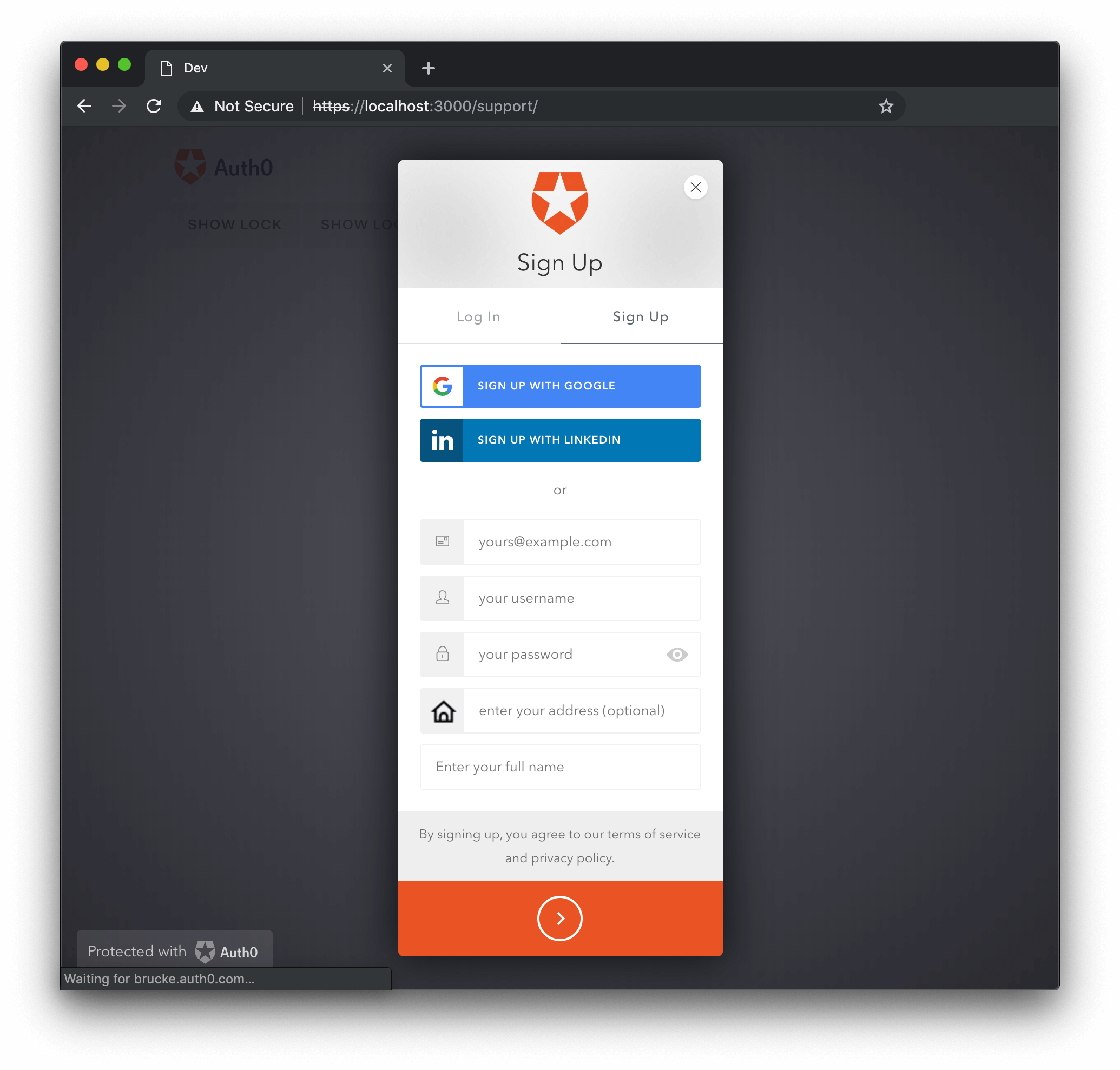 #### Select Field
The signup field `type: "select"` will allow you to use select elements for the user to choose a value from.
```js lines theme={null}
var options = {
additionalSignUpFields: [{
type: "select",
name: "location",
placeholder: "choose your location",
options: [
{value: "us", label: "United States"},
{value: "fr", label: "France"},
{value: "ar", label: "Argentina"}
],
// The following properties are optional
icon: "https://example.com/assests/location_icon.png",
prefill: "us"
}]
}
```
The `options` array items for `select` fields must adhere to the following format:
`{label: “non empty string”, value: “non empty string”}`, and at least one option must be defined.
The `options` and `prefill` values can be provided through a function:
```js lines theme={null}
var options = {
additionalSignUpFields: [{
type: "select",
name: "location",
placeholder: "choose your location",
options: function(cb) {
// obtain options, in case of error you call cb with the error in the
// first arg instead of null
cb(null, options);
},
icon: "https://example.com/assests/location_icon.png",
prefill: function(cb) {
// obtain prefill, in case of error you call cb with the error in the
// first arg instead of null
cb(null, prefill);
}
}]
}
```
#### Checkbox Field
The third type of custom signup field is the `type: "checkbox"`. The `prefill` value can determine the default state of the checkbox (`true` or `false`), and it is required.
```js lines theme={null}
var options = {
additionalSignUpFields: [{
type: "checkbox",
name: "newsletter",
prefill: "true",
placeholder: "I hereby agree that I want to receive marketing emails from your company"
}]
}
```
#### Hidden field
The signup field `type: "hidden"` will allow you to use a hidden input with a fixed value.
```js lines theme={null}
var options = {
additionalSignUpFields: [{
type: "hidden",
name: "signup_code",
value: "abc123"
}]
}
```
Some use cases may be able to use `additionalSignUpFields` data for email templates, such as an option for language preferences, the value of which could then be used to set the language of templated email communications.
### allowLogin \{Boolean}
When set to `false` the widget won't display the login screen. This is useful if you want to use the widget just for signups (the login and signup tabs in the signup screen will be hidden) or to reset passwords (the back button in the forgot password screen will be hidden). In such cases you may also need to specify the `initialScreen`, `allowForgotPassword` and `allowSignUp` options. It defaults to `true`.
`allowLogin: false`
#### Select Field
The signup field `type: "select"` will allow you to use select elements for the user to choose a value from.
```js lines theme={null}
var options = {
additionalSignUpFields: [{
type: "select",
name: "location",
placeholder: "choose your location",
options: [
{value: "us", label: "United States"},
{value: "fr", label: "France"},
{value: "ar", label: "Argentina"}
],
// The following properties are optional
icon: "https://example.com/assests/location_icon.png",
prefill: "us"
}]
}
```
The `options` array items for `select` fields must adhere to the following format:
`{label: “non empty string”, value: “non empty string”}`, and at least one option must be defined.
The `options` and `prefill` values can be provided through a function:
```js lines theme={null}
var options = {
additionalSignUpFields: [{
type: "select",
name: "location",
placeholder: "choose your location",
options: function(cb) {
// obtain options, in case of error you call cb with the error in the
// first arg instead of null
cb(null, options);
},
icon: "https://example.com/assests/location_icon.png",
prefill: function(cb) {
// obtain prefill, in case of error you call cb with the error in the
// first arg instead of null
cb(null, prefill);
}
}]
}
```
#### Checkbox Field
The third type of custom signup field is the `type: "checkbox"`. The `prefill` value can determine the default state of the checkbox (`true` or `false`), and it is required.
```js lines theme={null}
var options = {
additionalSignUpFields: [{
type: "checkbox",
name: "newsletter",
prefill: "true",
placeholder: "I hereby agree that I want to receive marketing emails from your company"
}]
}
```
#### Hidden field
The signup field `type: "hidden"` will allow you to use a hidden input with a fixed value.
```js lines theme={null}
var options = {
additionalSignUpFields: [{
type: "hidden",
name: "signup_code",
value: "abc123"
}]
}
```
Some use cases may be able to use `additionalSignUpFields` data for email templates, such as an option for language preferences, the value of which could then be used to set the language of templated email communications.
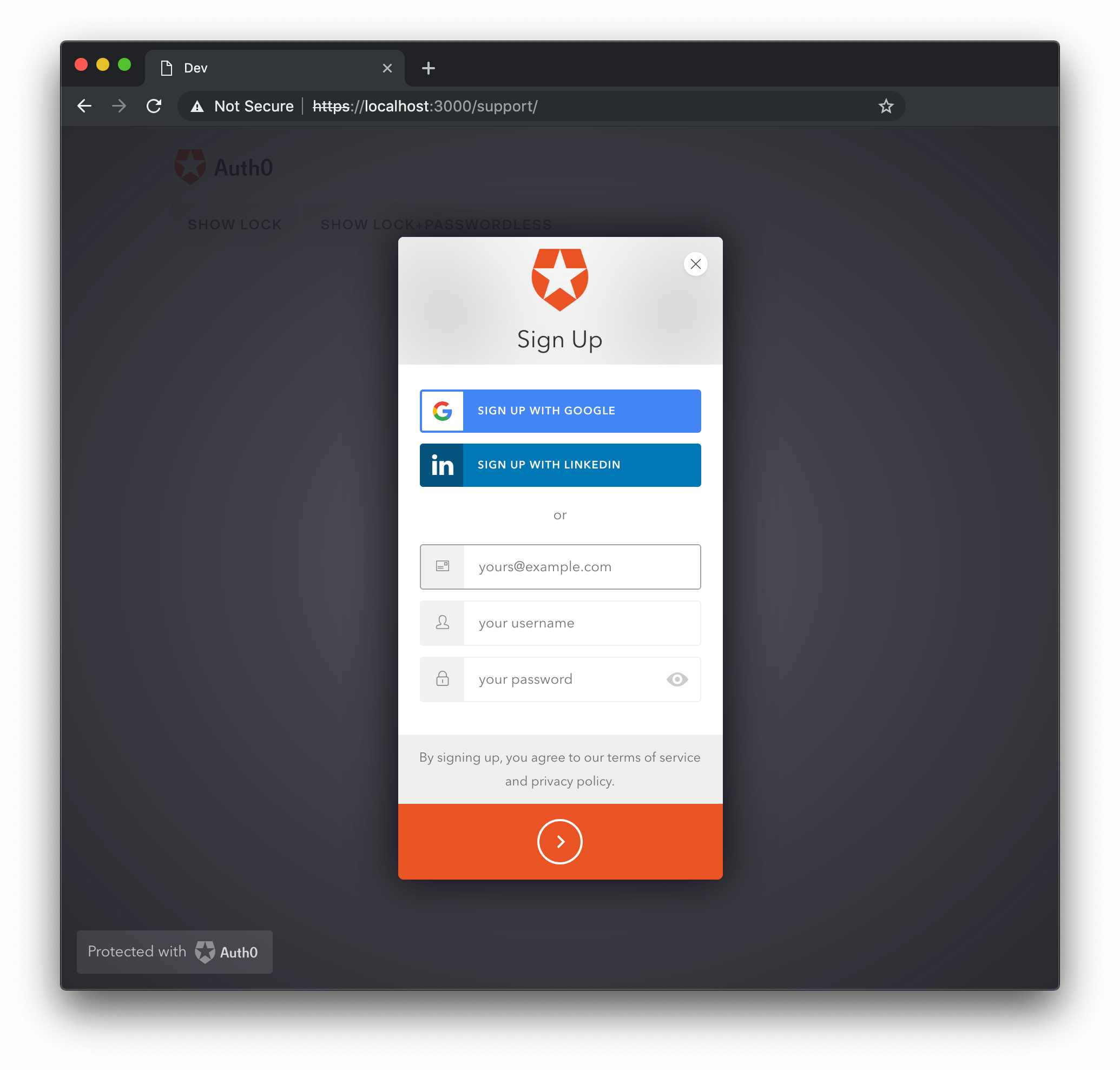
### allowLogin \{Boolean}
When set to `false` the widget won't display the login screen. This is useful if you want to use the widget just for signups (the login and signup tabs in the signup screen will be hidden) or to reset passwords (the back button in the forgot password screen will be hidden). In such cases you may also need to specify the `initialScreen`, `allowForgotPassword` and `allowSignUp` options. It defaults to `true`.
`allowLogin: false`
 ### allowForgotPassword \{Boolean}
When set to false, `allowForgotPassword` hides the "Don't remember your password?" link in the Login screen, making the Forgot Password screen unreachable. Defaults to true. If you are using a database connection with a custom database which doesn't have a change password script the Forgot Password screen won't be available.
`allowForgotPassword: false`
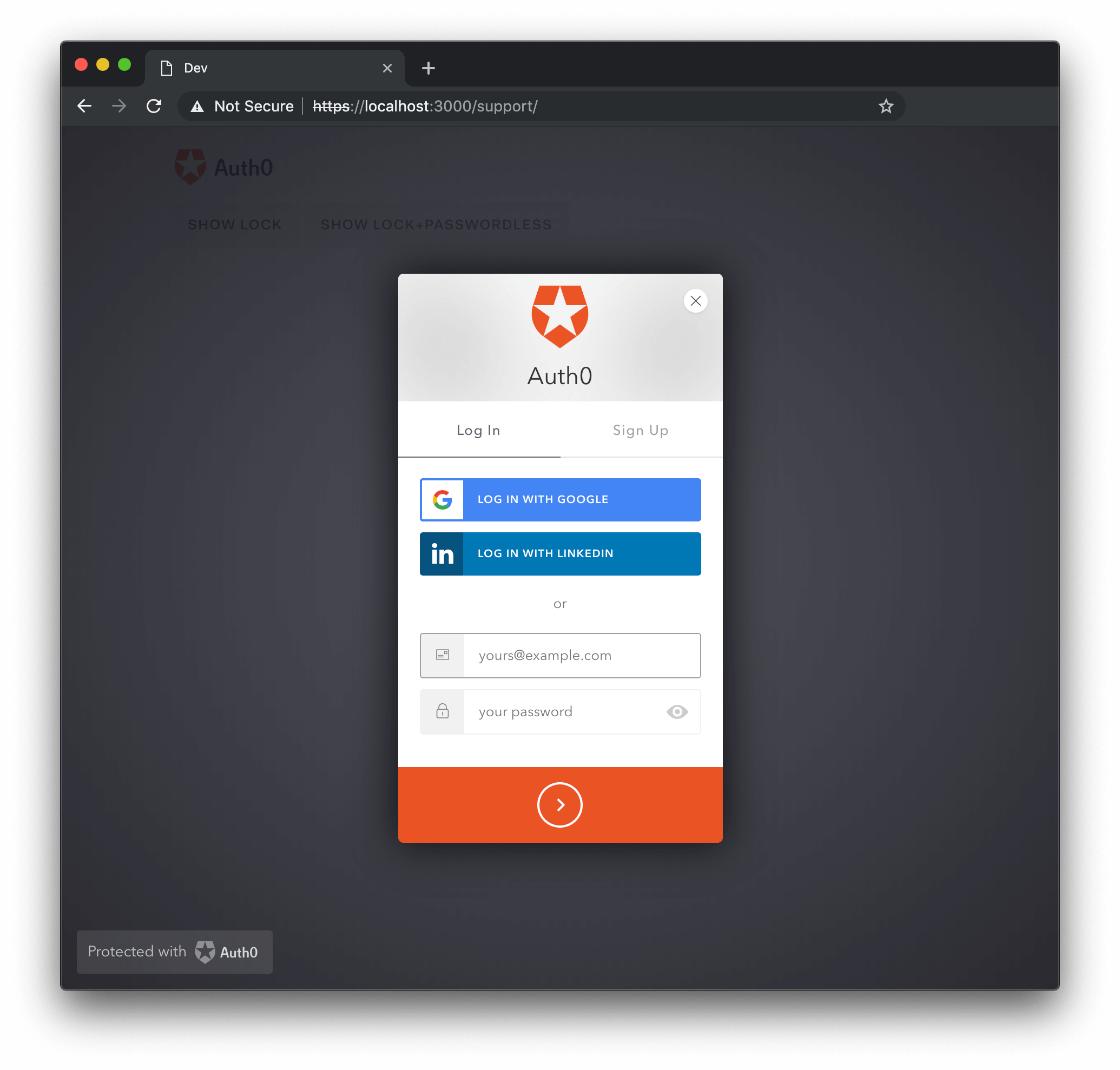
### allowForgotPassword \{Boolean}
When set to false, `allowForgotPassword` hides the "Don't remember your password?" link in the Login screen, making the Forgot Password screen unreachable. Defaults to true. If you are using a database connection with a custom database which doesn't have a change password script the Forgot Password screen won't be available.
`allowForgotPassword: false`
 ### allowSignUp \{Boolean}
When set to `false`, hides the login and sign up tabs in the login screen, making the sign up screen unreachable. Defaults to `true`. Keep in mind that if the database connection has sign ups disabled or you are using a custom database which doesn't have a create script, then the sign up screen won't be available.
Also bear in mind that this option **only** controls client-side appearance, and does not completely stop new sign ups from determined anonymous visitors. If you are looking to fully prevent new users from signing up, you must use the **Disable Sign Ups** option in the dashboard, in the connection settings.
`allowSignUp: false`
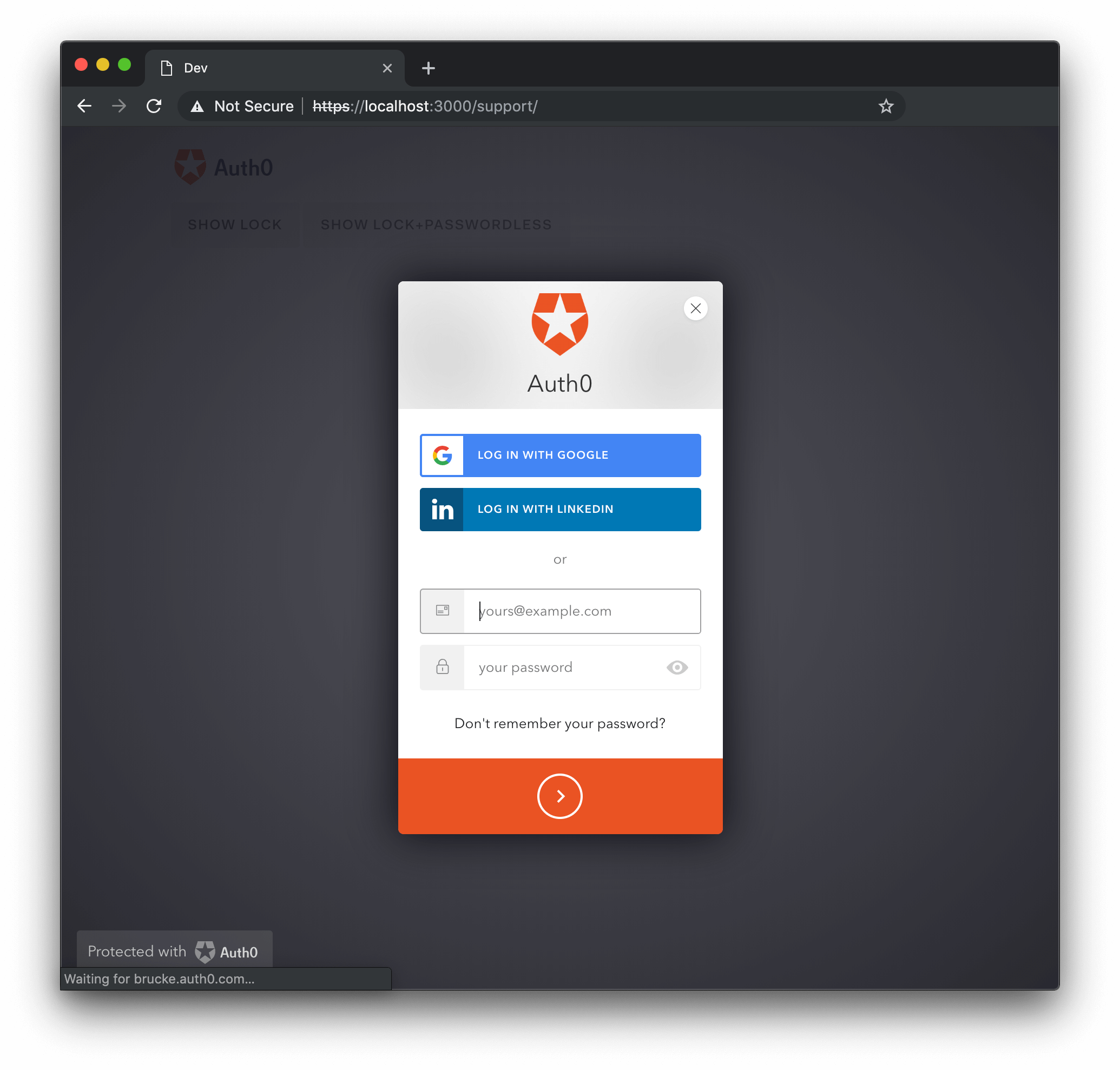
### allowSignUp \{Boolean}
When set to `false`, hides the login and sign up tabs in the login screen, making the sign up screen unreachable. Defaults to `true`. Keep in mind that if the database connection has sign ups disabled or you are using a custom database which doesn't have a create script, then the sign up screen won't be available.
Also bear in mind that this option **only** controls client-side appearance, and does not completely stop new sign ups from determined anonymous visitors. If you are looking to fully prevent new users from signing up, you must use the **Disable Sign Ups** option in the dashboard, in the connection settings.
`allowSignUp: false`
 ### defaultDatabaseConnection \{String}
Specifies the database connection that will be used when there is more than one available.
`defaultDatabaseConnection: 'test-database'`
### initialScreen \{String}
The name of the screen that will be shown when the widget is opened. Valid values are `login`, `signUp`, and `forgotPassword`. If this option is left unspecified, the widget will default to the first screen that is available from that list.
`initialScreen: 'forgotPassword'`
### loginAfterSignUp \{Boolean}
Determines whether or not the user will be automatically signed in after a successful sign up. Defaults to `true`.
`loginAfterSignUp: false`
### forgotPasswordLink \{String}
Set the URL for a page that allows the user to reset their password. When set to a non-empty string, the user will be sent to the provided URL when clicking the "Don't remember your password?" link in the login screen.
`forgotPasswordLink: 'https://yoursite.com/reset-password'`
### showTerms \{Boolean}
When set to `true` displays the `languageDictionary.signUpTerms` string. Defaults to `true`.
`showTerms: false`
### mustAcceptTerms \{Boolean}
When set to `true` displays a checkbox input alongside the terms and conditions that must be checked before signing up. The terms and conditions can be specified via the `languageDictionary` option. This option will only take effect for users signing up with database connections. Defaults to `false`.
`mustAcceptTerms: true`
### prefill \{Object}
Allows to set the initial value for the email and/or username inputs. When omitted, no initial value will be provided.
```js lines theme={null}
var options = {
prefill: {
email: "someone@auth0.com",
username: "someone",
phoneNumber: "+1234567890"
}
};
```
### signUpLink \{String}
Set the URL to be requested when clicking on the Signup button. When set to a non empty string, this option forces `allowSignUp` to `true`.
`signUpLink: 'https://yoursite.com/signup'`
### usernameStyle \{String}
Determines what will be used to identify the user for a Database connection that has the `requires_username` flag set (if it is not set, `usernameStyle` option will be ignored). Possible values are `"username"` and `"email"`. By default both `username` and `email` are allowed; setting this option will limit logins to use one or the other.
`usernameStyle: 'username'`
## Enterprise Options
### defaultEnterpriseConnection \{String}
Specifies the enterprise connection which allows to login using a username and a password that will be used when there is more than one available or there is a database connection. If a `defaultDatabaseConnection` is provided the database connection will be used and this option will be ignored.
`defaultEnterpriseConnection: 'test-database'`
### defaultADUsernameFromEmailPrefix \{Boolean}
Resolve the AD placeholder username from the email's prefix. Defaults to `true`.
`defaultADUsernameFromEmailPrefix: false`
## Passwordless Options
### passwordlessMethod \{String}
When using `Auth0LockPasswordless` with an email connection, you can use this option to pick between sending a [code](/docs/authenticate/passwordless) or a [magic link](/docs/authenticate/passwordless) to authenticate the user. Available values for email connections are `code` and `link`. Defaults to `code`. SMS
### defaultDatabaseConnection \{String}
Specifies the database connection that will be used when there is more than one available.
`defaultDatabaseConnection: 'test-database'`
### initialScreen \{String}
The name of the screen that will be shown when the widget is opened. Valid values are `login`, `signUp`, and `forgotPassword`. If this option is left unspecified, the widget will default to the first screen that is available from that list.
`initialScreen: 'forgotPassword'`
### loginAfterSignUp \{Boolean}
Determines whether or not the user will be automatically signed in after a successful sign up. Defaults to `true`.
`loginAfterSignUp: false`
### forgotPasswordLink \{String}
Set the URL for a page that allows the user to reset their password. When set to a non-empty string, the user will be sent to the provided URL when clicking the "Don't remember your password?" link in the login screen.
`forgotPasswordLink: 'https://yoursite.com/reset-password'`
### showTerms \{Boolean}
When set to `true` displays the `languageDictionary.signUpTerms` string. Defaults to `true`.
`showTerms: false`
### mustAcceptTerms \{Boolean}
When set to `true` displays a checkbox input alongside the terms and conditions that must be checked before signing up. The terms and conditions can be specified via the `languageDictionary` option. This option will only take effect for users signing up with database connections. Defaults to `false`.
`mustAcceptTerms: true`
### prefill \{Object}
Allows to set the initial value for the email and/or username inputs. When omitted, no initial value will be provided.
```js lines theme={null}
var options = {
prefill: {
email: "someone@auth0.com",
username: "someone",
phoneNumber: "+1234567890"
}
};
```
### signUpLink \{String}
Set the URL to be requested when clicking on the Signup button. When set to a non empty string, this option forces `allowSignUp` to `true`.
`signUpLink: 'https://yoursite.com/signup'`
### usernameStyle \{String}
Determines what will be used to identify the user for a Database connection that has the `requires_username` flag set (if it is not set, `usernameStyle` option will be ignored). Possible values are `"username"` and `"email"`. By default both `username` and `email` are allowed; setting this option will limit logins to use one or the other.
`usernameStyle: 'username'`
## Enterprise Options
### defaultEnterpriseConnection \{String}
Specifies the enterprise connection which allows to login using a username and a password that will be used when there is more than one available or there is a database connection. If a `defaultDatabaseConnection` is provided the database connection will be used and this option will be ignored.
`defaultEnterpriseConnection: 'test-database'`
### defaultADUsernameFromEmailPrefix \{Boolean}
Resolve the AD placeholder username from the email's prefix. Defaults to `true`.
`defaultADUsernameFromEmailPrefix: false`
## Passwordless Options
### passwordlessMethod \{String}
When using `Auth0LockPasswordless` with an email connection, you can use this option to pick between sending a [code](/docs/authenticate/passwordless) or a [magic link](/docs/authenticate/passwordless) to authenticate the user. Available values for email connections are `code` and `link`. Defaults to `code`. SMS